

Hands-on practice with the example data
This session goes through a complete analysis with the example data provided with nimo: records of the white-backed vulture (Gyps africanus) in Kruger National Park, South Africa. It takes about 30 minutes and uses the main features presented in the other documentation pages. After each step, a short explanation helps read the outputs.
The white-backed vulture is Critically Endangered. Its populations have declined rapidly because of poisoning, collisions with power lines and loss of nesting trees. Knowing which areas are suitable helps target monitoring and protection.
The data
Download the example data: nimo_example_data.zip. It contains:
- Gyps_africanus_KNP.csv: presence and absence records, with the columns scientificName, longitude, latitude and pr_ab (1 = presence, 0 = absence);
- env_layers: a folder with two predictor layers covering part of the park:
- dnw: distance to the nearest water;
- dsm: digital surface model, the height of the land surface including vegetation and structures.
The predictor layers cover only part of the area where records were collected, so records outside the layers are left out at the extraction step.
Step 1. Start nimo and set the project
- Open R or RStudio and launch nimo (see Get Started).
- Click the wrench at the bottom of the sidebar and check that Set seed is 123, so your results match those shown here.
- Go to Pre-Modeling > Set Directory. Choose an empty folder with Directory, select the algorithms Generalized Linear Models, Random Forest, Bioclim and Domain, keep Ensemble on Average, and click Set up.
Step 2. Import the records
- Go to Pre-Modeling > Calibration and tick Import data.
- Set Data type to Presence – Absence.
- Click Load data and select Gyps_africanus_KNP.csv.
- In the window that opens, choose:
- Species column: scientificName, then the species name in Species;
- Longitude: longitude; Latitude: latitude;
- Occurrence column: pr_ab; Presence: 1; Absence: 0.
- Click Valid.
The Unique Occurrence tab lists 422 records, 211 presences and 211 absences, with no duplicates. The Geographic map shows records spread over most of the park, from north to south. The predictor layers loaded in the next step cover only a strip in the southern half of the park, so only a small part of these records can be used for modeling.
Step 3. Load the predictors and check the data
- Go to Pre-Modeling > Predictors, click Predictor Folder and select the env_layers folder.
- Select dnw in Predictors and click Show to view the layer.
- Click Outliers, then Detect. Set the minimum to 2 methods and click Remove flagged.
- Click Filter, keep Geographical and Cellsize, type
2, 4, 8in Factor and click Filter. Then click Use in analysis.
Outlier detection can only examine the 25 presences inside the predictor layers; the others appear as no data. Of these 25 presences, 19 are flagged by no method, 5 by one method and 1 by two methods. With a minimum of 2 methods, one presence is removed. A presence flagged by a single method is rarely a concern: agreement between several methods is a stronger sign of an unusual record.
The filter then thins the 24 remaining presences inside the layers with three minimum distances:
| Factor | Minimum distance | Presences kept | Spatial autocorrelation |
|---|---|---|---|
| 2 | 0.45 km | 22 | 0.29 |
| 4 | 0.90 km | 19 | 0.26 |
| 8 | 1.80 km | 16 | 0.20 |
nimo keeps the datasets whose autocorrelation is below the average (0.25) and, among them, the one with the most records. Only factor 8 is below the average, so it is selected even though it keeps the fewest presences. The analysis continues with 16 presences and the 211 absences.
Sixteen presences is very few. The filter reduces bias but also removes information; with such a small dataset, a lighter filter is a reasonable alternative to test.
Step 4. Partition the records
- Go to Pre-Modeling > Partition.
- Choose Random with k-fold and Number of folds 4.
- Click Split, then Validate.
With presence-absence data, no background or pseudo-absence points are needed.
After extraction (next step), each of the four folds contains 4 presences and 5 or 6 absences. Every test is therefore made on about 10 records, so performance will vary a lot from one fold to another.
Step 5. Extract the predictor values
Go to Pre-Modeling > Data extraction, keep both predictors selected, and click Extract data.
The table keeps 39 records: 16 presences and 23 absences. The 188 other records fall outside the layers and are removed. Compare presences and absences:
| dnw (median) | dnw (range) | dsm (median) | dsm (range) | |
|---|---|---|---|---|
| Presences | 1.2 | 0 to 3.5 | 290 | 199 to 449 |
| Absences | 1.7 | 0 to 4.3 | 317 | 224 to 402 |
Presences tend to be slightly closer to water and at a slightly lower surface height, but the ranges overlap almost completely. Before fitting any model, this already suggests that the two predictors will hardly separate presences from absences.
Step 6. Fit the models
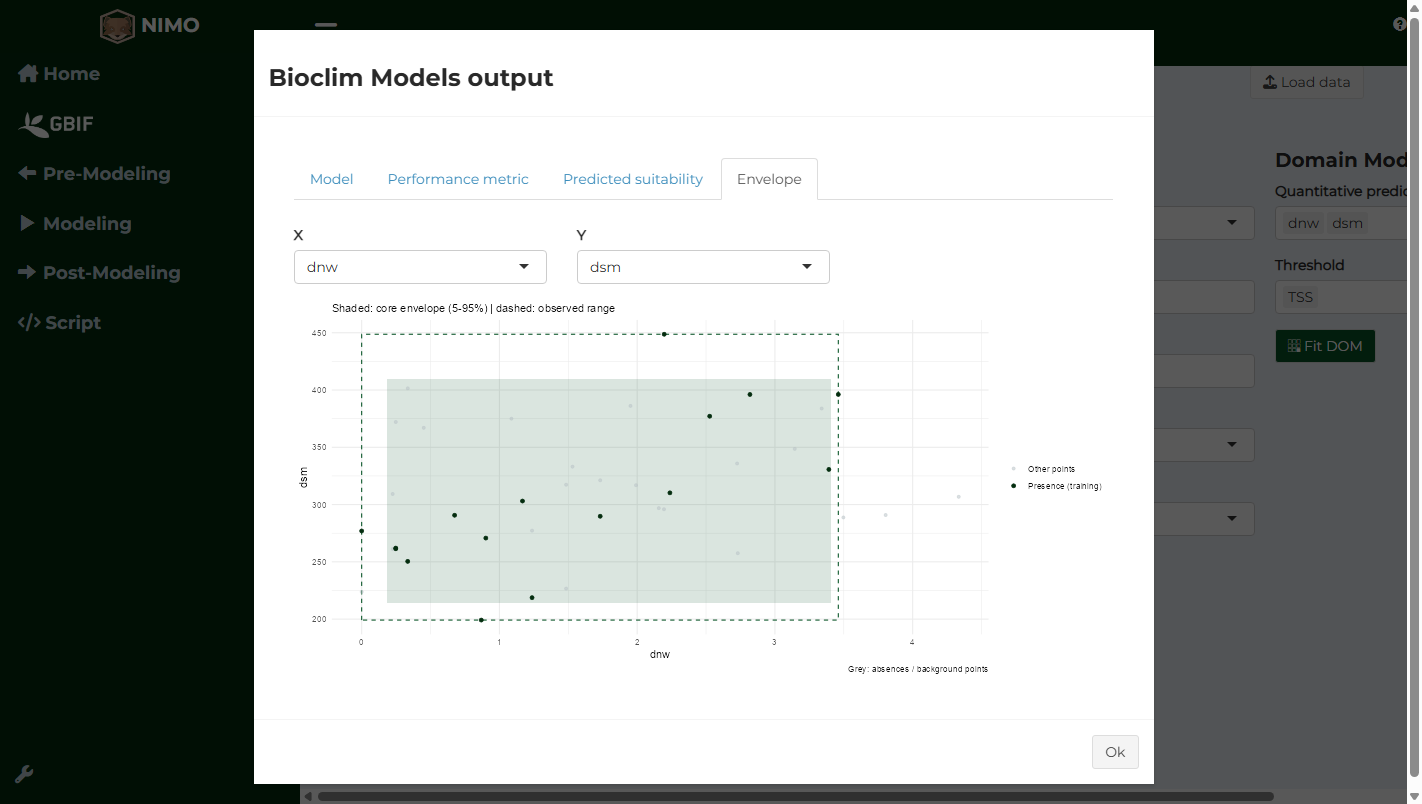
Go to Modeling > Fitting. For each algorithm, select dnw and dsm as Quantitative predictors and TSS as Threshold, then click Fit GLM, Fit RAF (Random Forest), Fit BIOC (Bioclim) and Fit DOM (Domain). After fitting Bioclim, open the Envelope tab.
The Performance metric tab gives the mean and standard deviation over the four test folds:
| Model | AUC | TSS | Sensitivity | Specificity | Threshold |
|---|---|---|---|---|---|
| GLM | 0.32 ± 0.22 | 0.20 | 0.94 | 0.27 | 0.47 |
| Random Forest | 0.51 ± 0.24 | 0.33 | 0.88 | 0.45 | 0.65 |
| Bioclim | 0.39 ± 0.16 | 0.09 | 0.69 | 0.40 | 0.06 |
| Domain | 0.51 ± 0.24 | 0.42 | 0.94 | 0.48 | 1.00 |
- AUC: 0.5 means the model ranks presences and absences no better than chance. Random Forest and Domain reach 0.51, and GLM and Bioclim are below 0.5: on the test records, absences often received higher suitability than presences.
- Variability: standard deviations around 0.2 confirm that results depend strongly on which records are in the test fold.
- Sensitivity and specificity: sensitivity is high but specificity is low. The models predict most places as suitable, so they find the presences but also most of the absences. The positive TSS values come from this imbalance, not from real discrimination.
The Envelope tab shows why Bioclim struggles: the absences (grey points) fall inside the same envelope as the presences.
With 16 presences, 23 absences and two predictors that differ little between them, the models cannot predict the distribution of the vulture. This is a useful result: it shows that more records or more relevant predictors are needed. The following steps remain valuable for learning to read the outputs, but these maps should not be used for decisions.
Step 7. Interpret the models
- Go to Post-Modeling > Variable importance and click Compute.
- Go to Post-Modeling > Response curves, click Compute, then Compute surface.
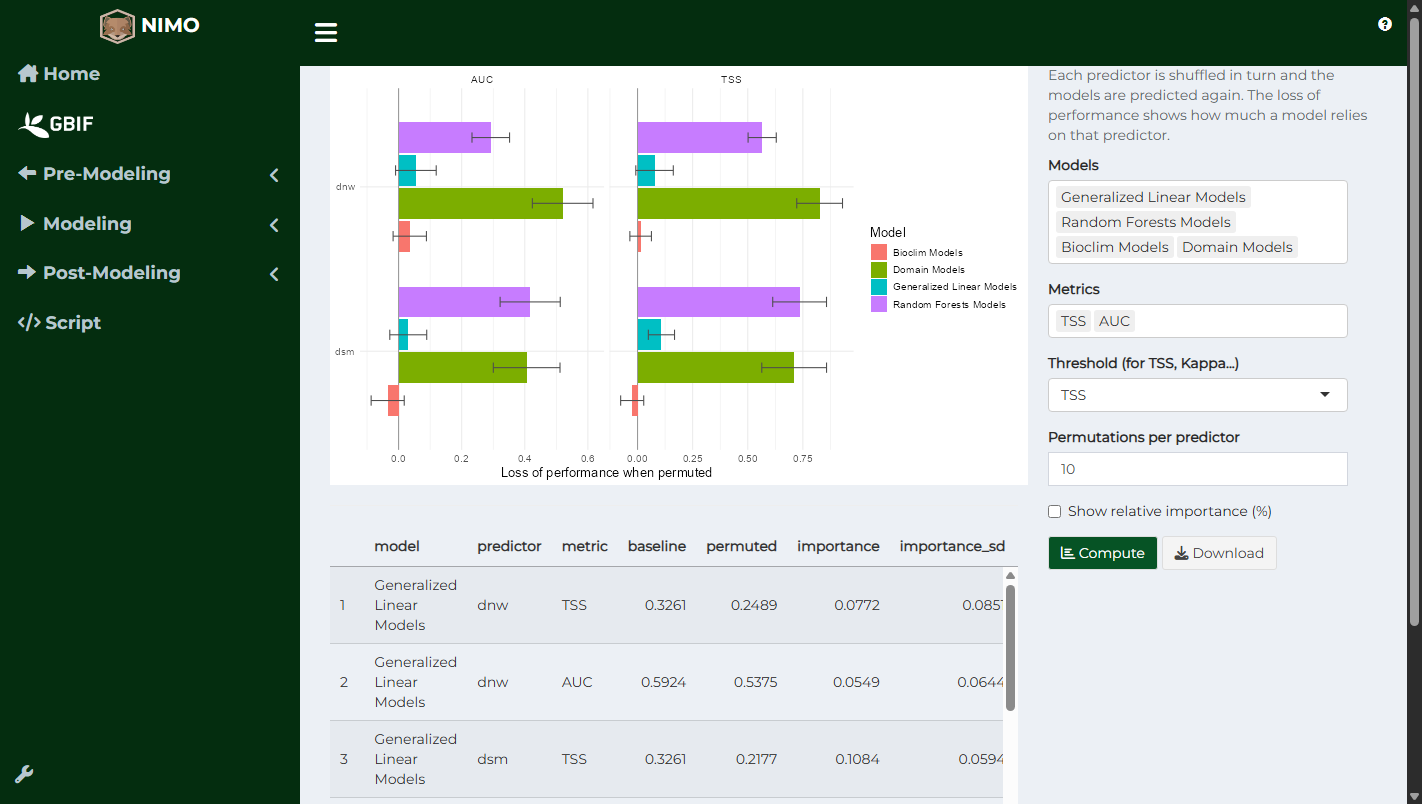
Variable importance is computed on all the modeling records, not on test folds. Random Forest and Domain reach an AUC of 1.0 on these records, compared with 0.51 on the test folds: they reproduce the records they learned from but do not generalise. This gap is the typical sign of overfitting, so their high importance values (0.3 to 0.8) describe what the models memorised rather than what drives the vulture’s distribution. For GLM, both predictors have small effects (below 0.11). For Bioclim, only dnw matters; shuffling dsm slightly improves performance, so its importance is negative. No predictor stands out consistently across models.
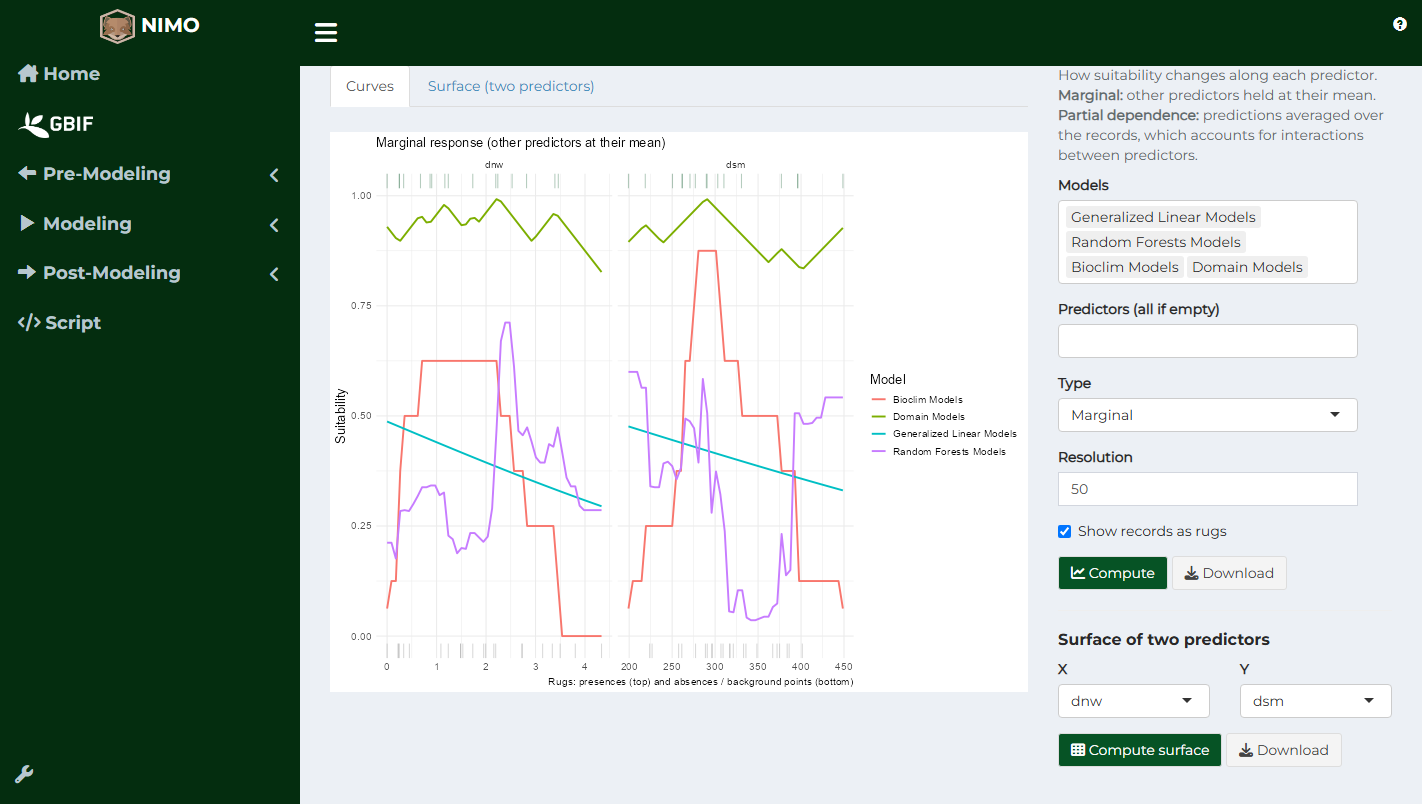
The response curves differ between algorithms:
- GLM: suitability decreases slowly with distance to water (from 0.49 at the water’s edge to 0.29 at the largest distances) and with surface height.
- Bioclim: suitability is highest around the typical conditions of the presences (dnw around 0.7, dsm around 280) and drops to 0 outside the observed range, which gives the flat-topped shape of an envelope.
- Random Forest: irregular, stepped curves following individual records, another sign of overfitting.
- Domain: suitability above 0.8 almost everywhere, because every value is close to at least one presence.
The models agree only loosely that the vulture is found closer to water and at lower surface heights. Given the weak performance, treat these patterns as hypotheses to test with more data.
Step 8. Map suitability
- Go to Modeling > Ensembling, select the four models, keep Average, choose TSS as Threshold, and click Assemble.
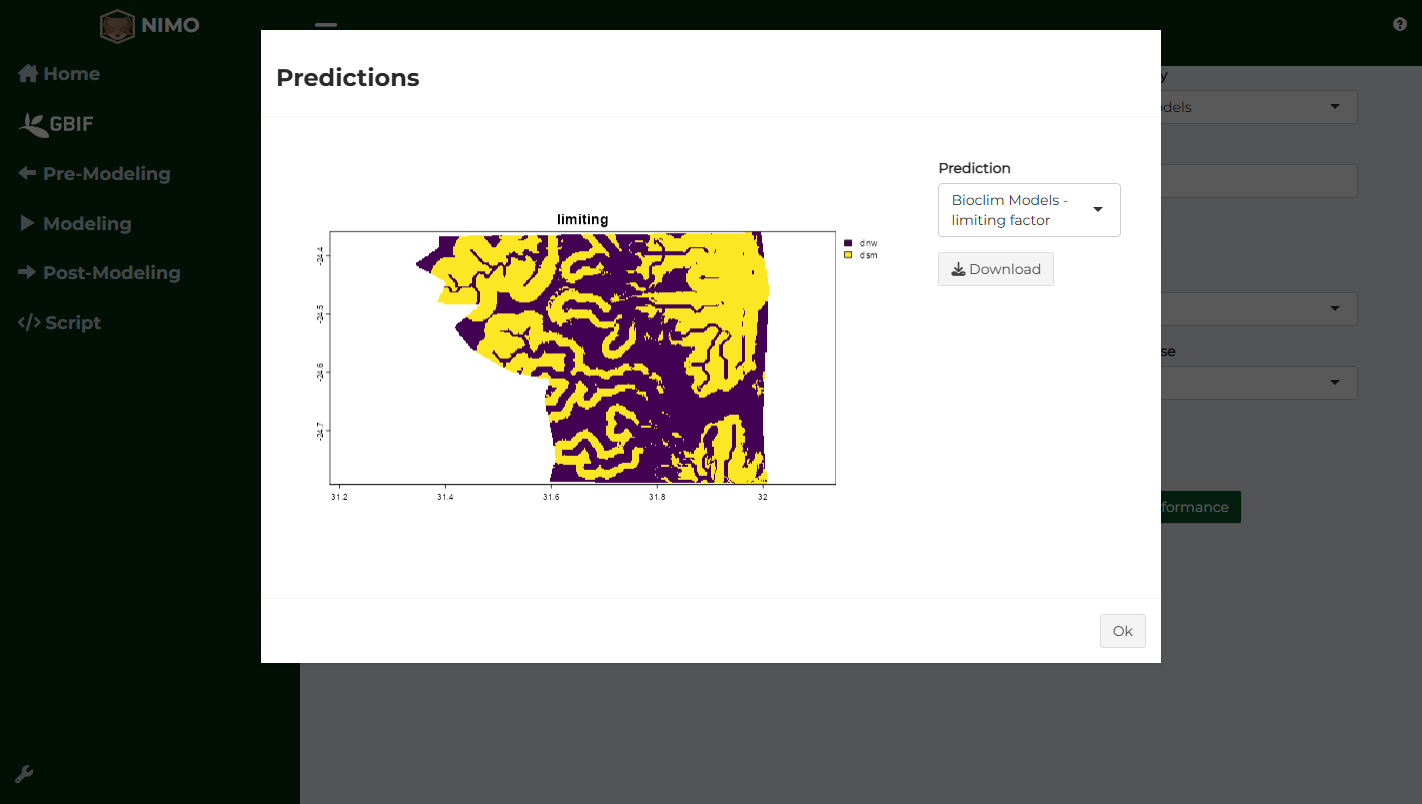
- Go to Post-Modeling > Predictions, select the four models in the table, choose TSS as Threshold, and click Predict. Look at the continuous and binary maps, then at the Bioclim limiting factor and envelope class maps.
- Set Model category to Ensemble and click Predict again to map the ensemble.
The binary maps show how much of the area each model predicts as suitable:
| Model | Area predicted suitable |
|---|---|
| GLM | 24% |
| Random Forest | 26% |
| Bioclim | 83% |
| Domain | 0.3% |
These differences come mainly from the thresholds: Bioclim’s threshold is very low (0.06), so almost everything is suitable, while Domain’s is almost 1, so almost nothing is. GLM, Random Forest and Bioclim agree on only 12% of the area as suitable. Strong disagreement between models is itself a sign of uncertainty.
On the Bioclim maps, dnw limits suitability in about half of the area and dsm in the other half; 70% of the area is in the core of the envelope, 13% is marginal and 17% is outside.
The ensemble reaches an AUC of 0.43 and a TSS of 0.19: averaging weak models does not produce a good one.
Step 9. Check reliability
Go to Post-Modeling > Extrapolation & uncertainty.
- Click Extrapolate.
- Under Extrapolation in environmental space, choose dnw and dsm and click Plot.
- Under Uncertainty (bootstrap), choose Bioclim Models, set Iterations to 10, and click Map uncertainty.
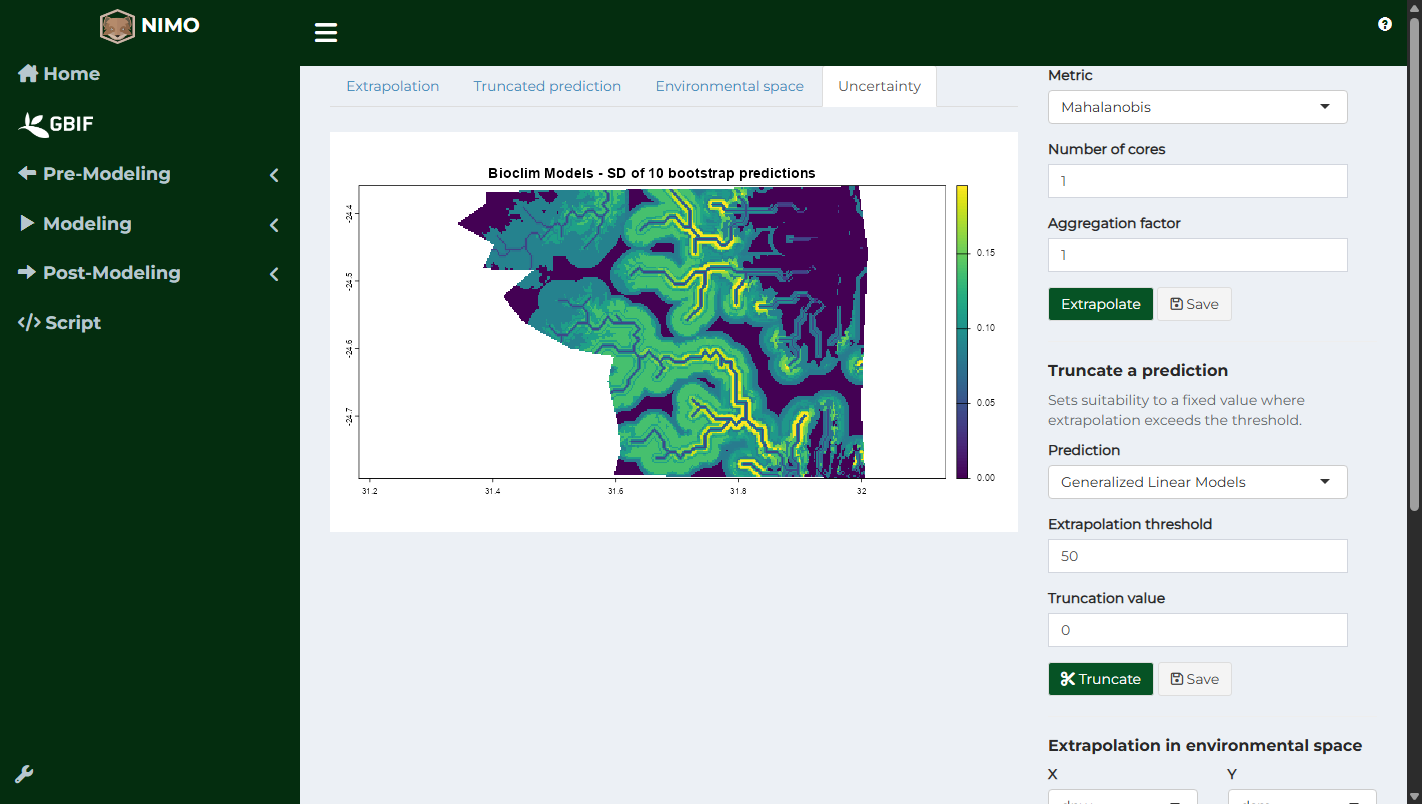
Extrapolation values range from 0 to about 220, with a median of 23. The highest values are far from water and at higher surface heights: the 5% most extrapolated cells have an average dnw of 3.7 and dsm of 386, against 1.7 and 314 for the whole area. About 12% of the area is farther from water than any record. Predictions there are extrapolations: interpret them with caution or truncate them. In the environmental space plot, these cells lie outside the cloud of records.
On the uncertainty map, the standard deviation of the Bioclim predictions ranges from 0 to 0.20. It is 0 outside the envelope, where Bioclim always predicts 0, and highest in the core of the envelope (0.10 on average, against 0.06 in the marginal area). With only 16 presences, each bootstrap sample changes the envelope noticeably, and the core is where this changes suitability the most.
Step 10. Save the script
Open Script and click Download. The file contains every step of this session. Open it in RStudio and run it: the results are the same as in the app.
What this example teaches
- Check that the records and the predictor layers cover the same area: here, only 24 of the 211 presences fall inside the layers.
- An AUC close to 0.5 means the model is no better than chance, whatever the maps look like.
- High performance on the training records combined with low performance on the test folds is a sign of overfitting.
- Disagreement between models and high extrapolation show where predictions are least reliable.
To build a reliable model of this species, extend the predictor layers to the whole park so that all records can be used, and add predictors related to its ecology, such as the availability of tall nesting trees, carcasses and distance to power lines.
Going further
- Repeat the analysis with a Spatial block partition and compare the performance.
- Add a spatial constraint (Distance to closest record) and compare the models fitted with and without it.
- Query vulture records from GBIF for the whole of South Africa and model a larger area with your own predictor layers.





One Comment